How to Make Wedding Name Cards and a Find-Your-Seat List
Once the tables are set, two printed pieces tell guests where to go: a find-your-seat list near the entrance and name cards at each place (or on an escort-card table). Making them by hand from a seating plan is slow and error-prone. Printing them from the same plan guarantees they match.
This guide uses the free wedding seating chart maker. The same steps work for galas, dinners and award nights.
Name cards, place cards and escort cards
Place cards (or name cards) sit at each place setting and show the guest's name. Escort cards are collected at the entrance and tell guests their table. A find-your-seat list or board does the escort-card job for everyone at once. The tool prints name cards with both the name and the table, so the same card can work as either.
Step 1: Finish the seating plan
Before printing anything, open Print & export and read the readiness check:
- Need a seat should be 0, unless you’re deliberately printing a draft.
- Hard rules should say “All kept.”
- Reserved, empty seats are listed separately and are fine.
Printing from an unfinished plan is how cards end up at the wrong table.
Step 2: Fix duplicate and long names
Look at the warnings:
- Names that appear more than once. Two guests called “Chris Taylor” will get identical cards and identical lines in the list. Give each a short name — “Chris Taylor (Groom’s college)” — in their details, and print with short names where needed.
- Long names shortened with ”…”. On the chart, very long names may be shortened. Name cards and lists always use full names and size the text to fit.
Names are printed exactly as typed, with accents and any script. Check spelling now — this is the moment it matters most.
Step 3: Choose the printouts
In What to print, tick:
- Find your seat (A–Z list) — every seated guest alphabetically, with their table name. Print it large for an easel or entrance table.
- Name cards (fold in half, 4 per page) — one card per seated guest, in alphabetical order.
- Optionally the seating chart and the table-by-table list for the venue.
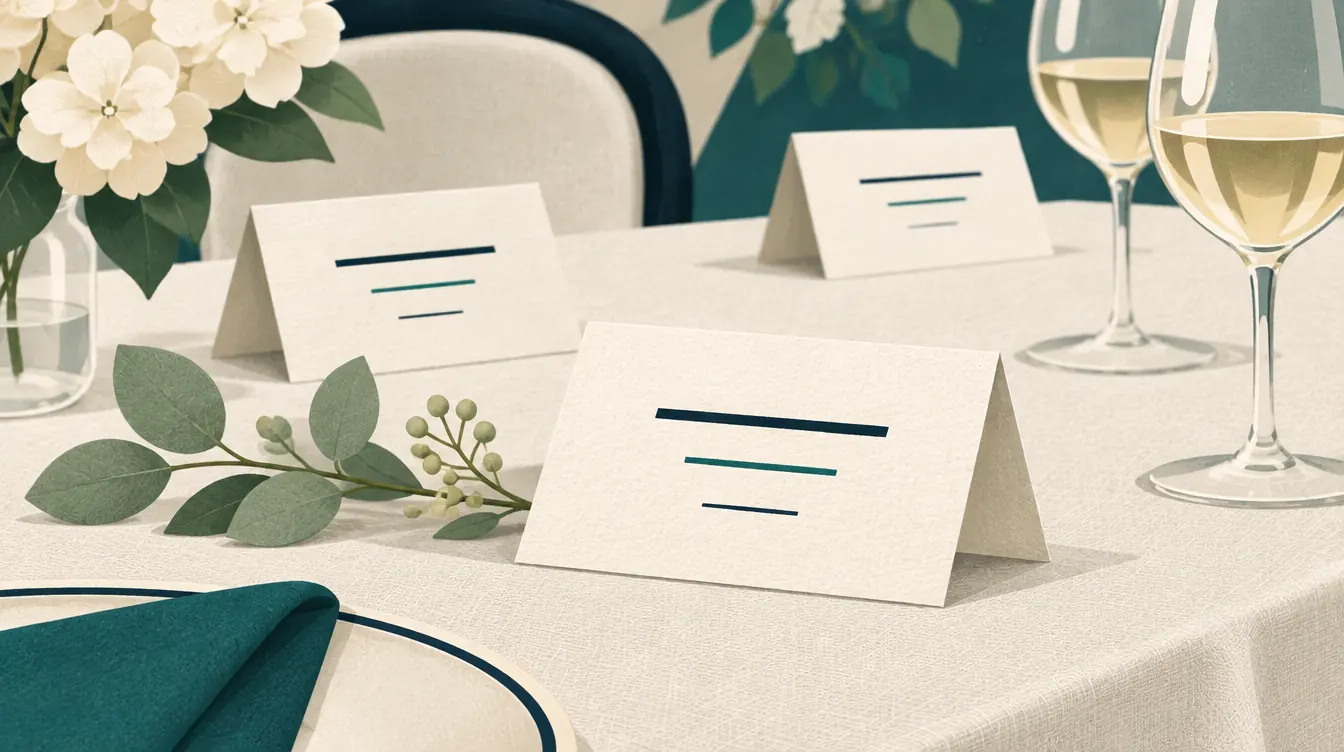
Each card shows the guest’s name and table, printed twice — once upside down — so it reads correctly from both sides when folded as a tent.
Step 4: Choose paper and print
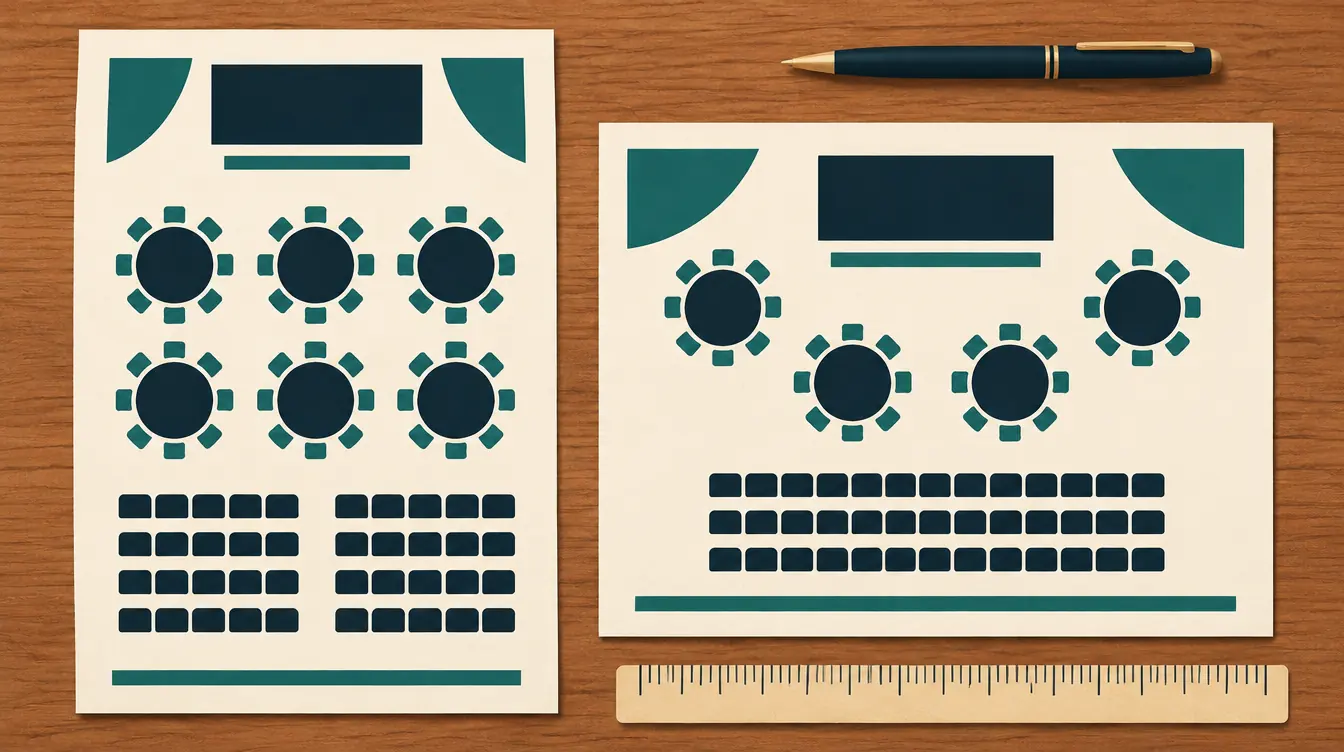
- Choose US Letter or A4. Cards are laid out four per page on either.
- Use card stock your printer can feed; most home printers handle light card.
- To keep colors, turn on Background graphics in the print dialog. The cards are designed to look right in plain black on white.
- To have cards printed professionally, choose Save as PDF in the print dialog and send the PDF to the print shop. Ask them to print at 100% (no “fit to page”).
Step 5: Cut and fold
Each page has dashed cutting lines around four cards and a dotted fold line across the middle of each card. Cut along the dashed lines, then fold along the center. A paper trimmer gives straighter edges than scissors.
Designing the find-your-seat list
The A–Z list is designed to be read quickly by a queue of guests:
- Names are in alphabetical order using the language rules of your browser (so “Émile” sorts with “E”).
- Each line has the name, a dotted leader and the table name.
- Two columns per page keep it compact.
Ideas for displaying it:
- Print on A4 or Letter, then enlarge at a print shop to poster size.
- Split it into “A–L” and “M–Z” and place one on each side of the entrance.
- Export a PNG of the seating chart at poster resolution to display beside the list.
Changes after printing
Last-minute changes happen. When a guest moves:
- Make the change in the chart.
- Reprint just the cards affected — or reprint the page containing them.
- Reprint the find-your-seat list, which changes whenever anyone moves.
Saving a version before printing lets you compare later to see exactly which guests moved since the cards went out.
Checklist
- Everyone seated; no broken must-rules.
- Spelling checked.
- Duplicate names distinguished.
- Table names final (they appear on every card).
- Paper size matches the printer.
- Version saved at the moment of printing.
Related
Put this guide into practice — it’s free and takes a few minutes.
Open the templateNew here? Read the complete guide to the free seating chart maker or the Wedding seating chart maker page .