How to Use Keep-Apart and Sit-Together Rules Well
Rules are the most powerful part of a seating plan generator, and the easiest to overuse. A few precise rules give you a plan you trust; a long list of vague ones gives you a plan that’s impossible, or one that hides what matters among what doesn’t.
This guide explains each rule type in the free seating chart maker, what it means exactly, and how to write rules that help.
The four rule types
| Rule | Means | Default in classroom, band, orchestra | Default at weddings and events |
|---|---|---|---|
| Keep apart | Listed people are not close | Not in adjacent seats | Not at the same table |
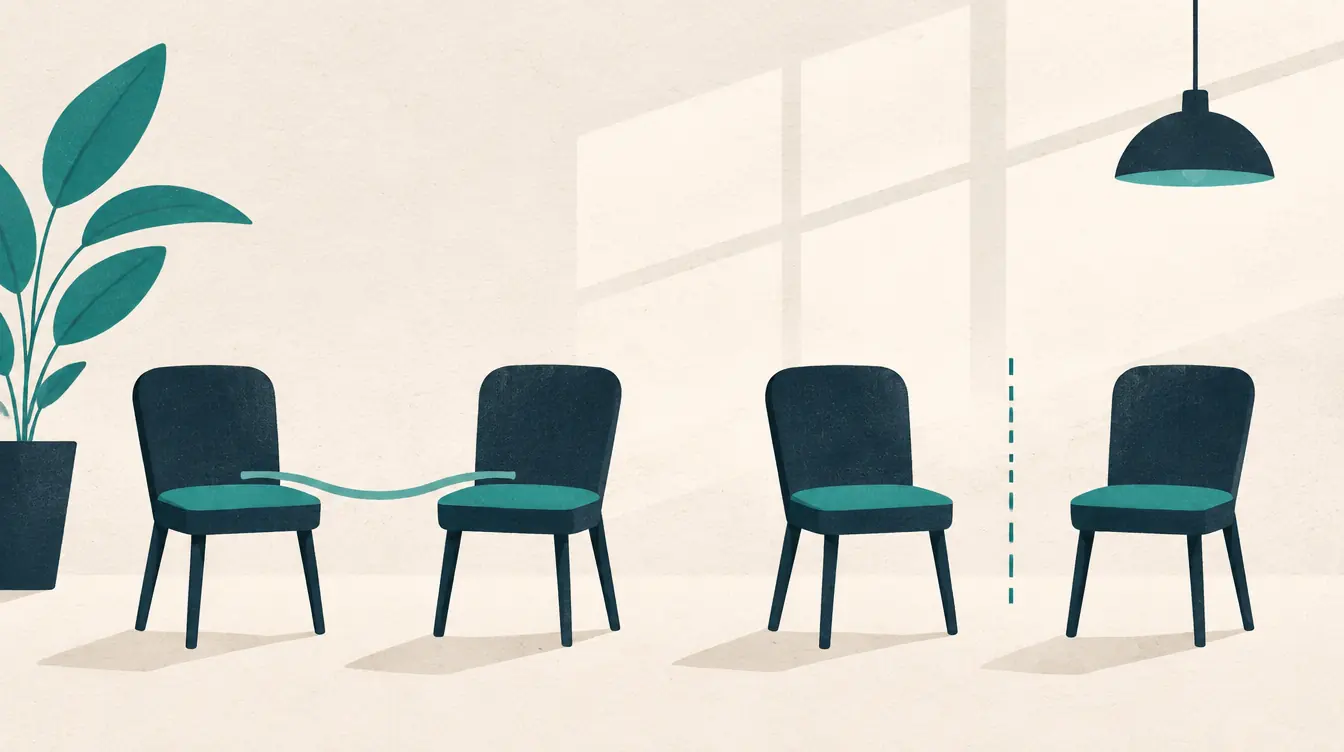
| Sit together | Listed people are close | In adjacent seats | At the same table |
| Preferred area | Listed people sit in chosen tables, rows or seats | — | — |
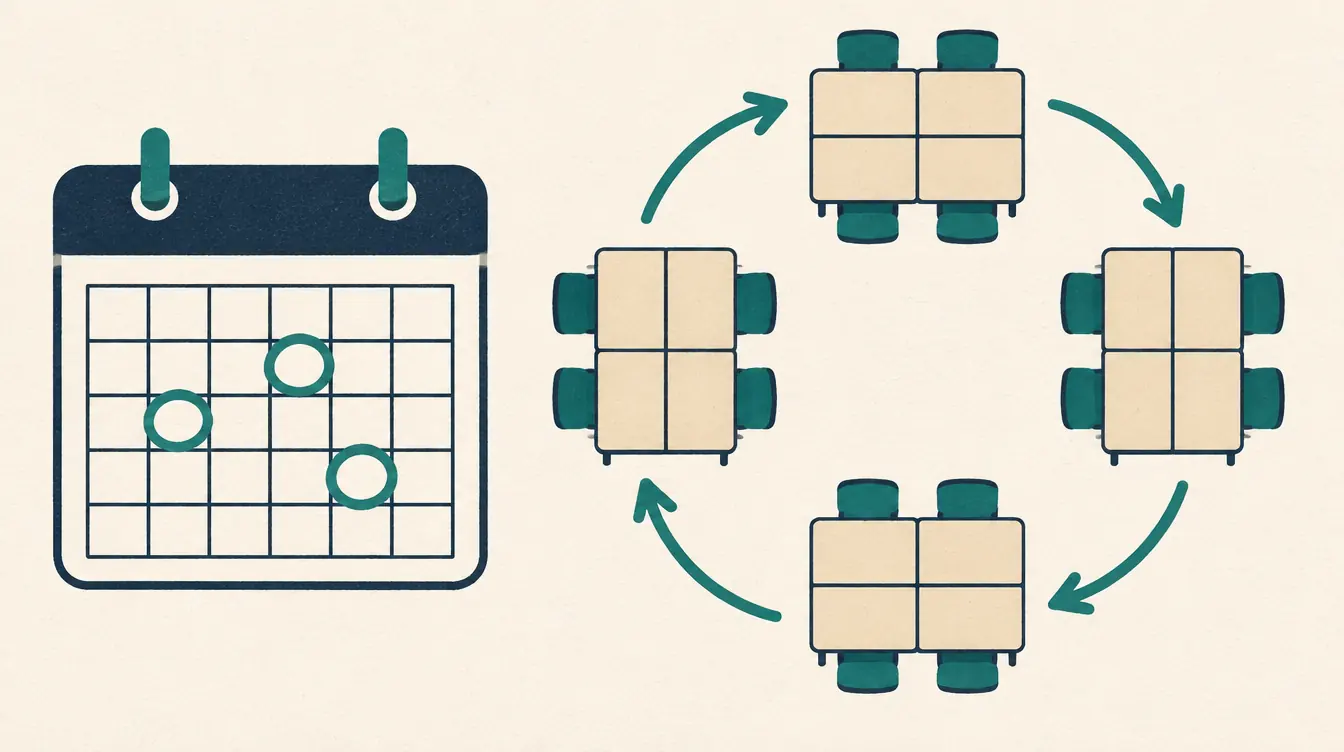
| Avoid previous neighbors | People who sat next to each other in a saved version don’t again | — | — |
The meaning is written next to every rule in the Rules panel, so there’s never any doubt about what a rule will do.
What “adjacent” means
Two seats are adjacent when their centers are within a set distance — 100 units by default, roughly the gap between two side-by-side desks. You can change the distance in Layout and check it: select any seat and turn on Show which seats count as adjacent.
In the default classroom templates:
- desks side by side in a row are adjacent,
- desks in the row in front and behind are not,
- two seats at a pair desk are adjacent,
- seats facing each other across a pod are adjacent.
If “keep apart” should also cover front-to-back neighbors, increase the distance until those desks light up.
What “same table” means
For table rules, a table is any object with seats: a round or rectangular table, a pod, a desk (single or pair) or a row. So “not at the same table” in a classroom of pods means “in different pods”; in theater rows it means “in different rows.”
Must or preference?
Every rule is one or the other:
- A must (hard rule) is never broken. Automatic arranging won’t break it, and a manual move that would break it is refused with the rule’s name.
- A preference is met where possible. Unmet preferences are listed so you can decide whether they matter.
A useful test: if this rule were broken, would I have to change the plan before using it? If yes, it’s a must. Otherwise, it’s a preference.
Writing better rules
Keep rules small
A keep-apart rule with eight people forces all eight to be mutually non-adjacent. In a full room, that’s very restrictive. If what you really mean is three specific pairs, write three pair rules.
Prefer table-level rules for groups
“Sit together · adjacent seats” for six people requires a connected cluster of six seats. “Sit together · same table” just needs six seats at one table. Use adjacency for pairs and small groups; use table level for households and teams.
Name your rules
Give a rule a name — “Twins in different pods,” “Haddad family,” “Lab partners” — and messages become much clearer: “Not moved: Twins in different pods — Sam and Alex are at the same table.” No reason is required, and none is stored beyond the name you choose. Avoid putting sensitive information in names.
Use preferred areas sparingly
Preferred areas are best as preferences. Forcing many people into a small area is one of the most common causes of “no arrangement found.” Make it a must only for the few people who truly need it.
Retire rules when they expire
Project groups end, new students settle in. A rule that’s no longer needed still constrains every shuffle. Turn it off (it stays in the list) or delete it.
Checking rules on the plan
- Rules with problems are outlined in Rules: red for broken musts, amber for unmet preferences.
- Show on plan highlights the seats involved.
- The status bar shows the number of rule problems; clicking it opens Rules.
- When you choose a person to place, seats that would break a must are shaded so you can see the safe options before you click.
Examples
Classroom (adjacent):
- Keep apart · must: Ben H., Owen P.
- Sit together · preference: Kai N., Rosa D. (new arrivals)
- Preferred area · must: Lena F. → Desks 1–6
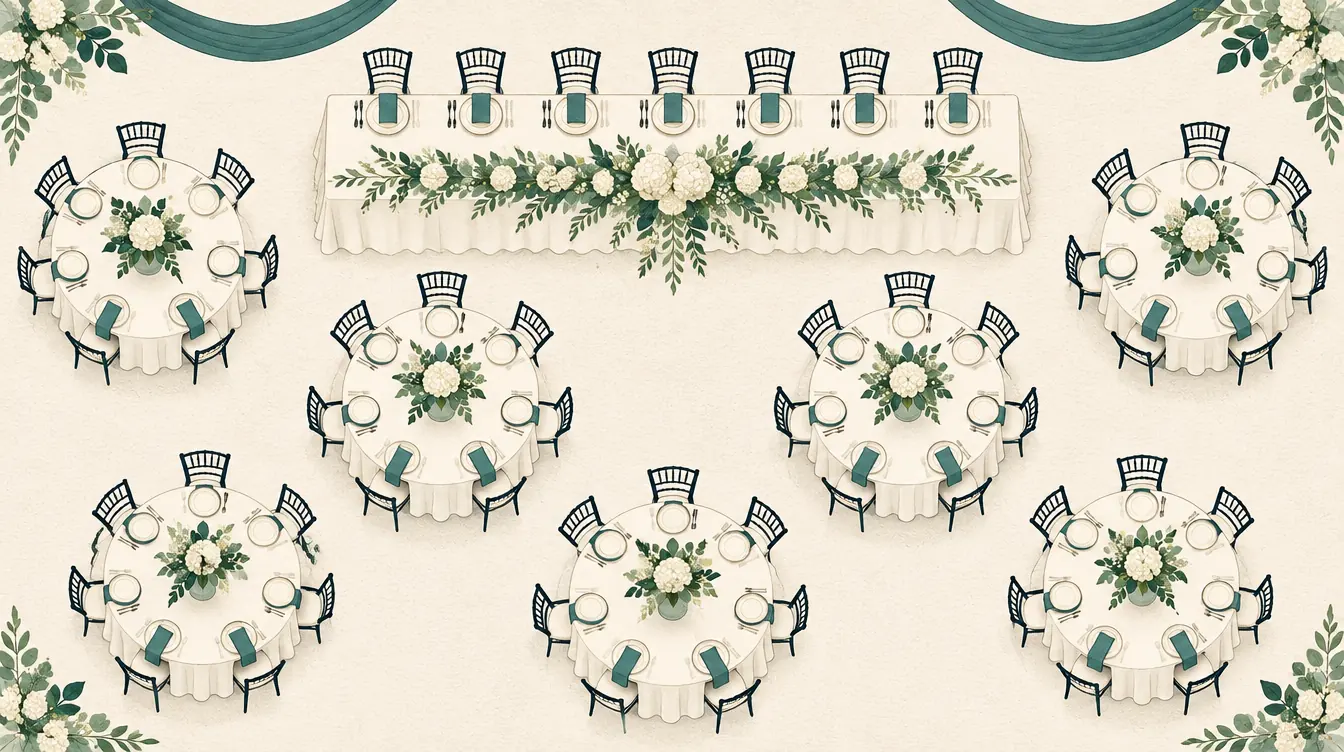
Wedding (table):
- Sit together · preference, one per household (added automatically from households)
- Keep apart · must: two relatives at different tables
- Preferred area · preference: grandparents → tables nearest the exit
Band (adjacent):
- Sit together · must: two players sharing a part
- Avoid previous neighbors · preference, comparing with last concert’s version
When rules can’t all be met
The tool never relaxes a must on its own. It tells you whether it found a contradiction, checked every arrangement, or simply ran out of time — see How to Fix Conflicting Seating Rules.
Related
- How to Change Seats While Keeping Selected Assignments
- How to Organize Wedding Tables and Guest Lists
Put this guide into practice — it’s free and takes a few minutes.
Create a chartNew here? Read the complete guide to the free seating chart maker or the Classroom seating chart maker page .