How to Fix Conflicting Seating Rules
Rules make a seating plan generator useful — and occasionally impossible. Add enough “musts” and there may be no arrangement that satisfies them all. When that happens, a good tool should tell you exactly what went wrong and never quietly ignore one of your rules.
This guide explains the three messages you can see, how to find the rule that’s causing trouble, and the smallest change that usually fixes it.
First, the guarantee
When automatic arrangement can't satisfy every must rule, your plan is left exactly as it was. No rule is relaxed behind your back, and the message names the rules involved. Only you decide which rule to change.
The three messages
| Message | What it means | Is it proven impossible? |
|---|---|---|
| These rules contradict each other | The tool found a direct contradiction before searching — for example, the same two people must sit together and apart at the same table, or a locked seat already breaks a must | Yes — the reason is shown |
| No arrangement satisfies every hard rule | The tool checked every possible arrangement of the people who fit in the seats and none worked | Yes, for the current seats and locks |
| We could not find an arrangement with these rules | The search reached its time or step limit before finding one | No. One may exist |
The third message is worded carefully on purpose. Running out of time is not the same as proving something impossible, and the tool won’t claim otherwise.
Contradictions the tool detects up front
Some contradictions can be shown without searching. The tool checks for these first and names them:
- Together and apart for the same people. “Sit together · same table” and “Keep apart · same table” both include the same pair. They ask for opposite things.
- A group too big for any table. A must-rule asks six people to sit at one table, but the largest table has five free seats.
- Not enough connected seats. A must-rule asks four people to sit in adjacent seats, but the largest group of connected free seats has three.
- A preferred area that’s too small. A must-rule asks eight people to sit in two pods with six free seats.
- Locks that already break a rule. Two locked students sit side by side, but a must-rule keeps them apart.
Each comes with the rule name and the numbers involved — for example, “Smith household needs 6 seats at one table, but the largest table has 5 free seats.”
Step 1: Find the rules involved
Open Rules. Rules with problems are outlined:
- Broken (red) — a must-rule is broken in the current plan, usually because of a manual change made before the rule existed.
- Not met (amber) — a preference isn’t satisfied.
Use Show on plan next to a rule to highlight the seats involved. Select a seat and turn on Show which seats count as adjacent to check whether two seats really are neighbors under the current adjacency distance.
Step 2: Apply the smallest fix
Work through these in order. Each is a small change; try again after each one.
1. Turn a must into a preference
Most rules don’t need to be absolute. A preference is still met whenever possible, and you’ll see a list if it isn’t. Edit the rule and switch off Must (hard rule). Keep musts for what truly cannot happen.
2. Check what “adjacent” means
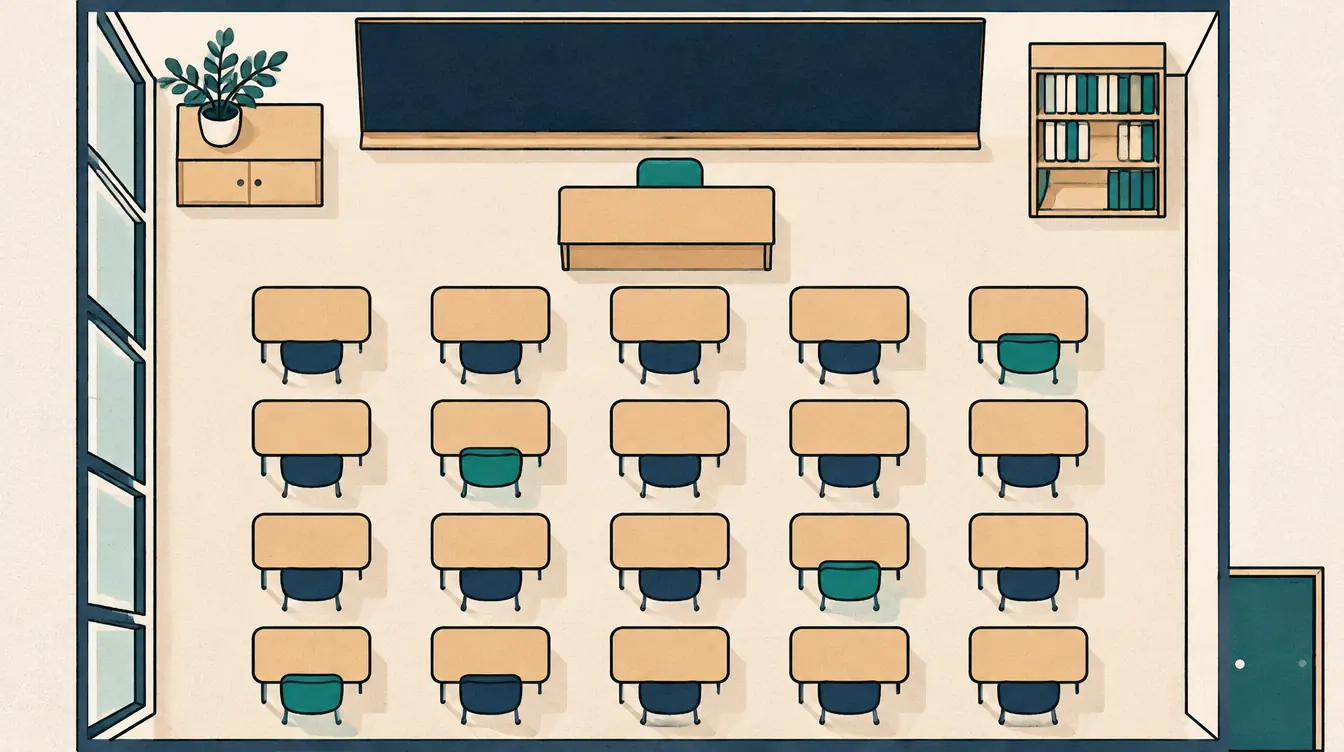
If your classroom desks are close together, “not adjacent” may rule out more seats than you intended — including the desks in front and behind. In Layout › Plan settings, reduce Adjacent seat distance a little, then check again with Show which seats count as adjacent.
The opposite also happens at events: “sit together · adjacent seats” across a round table may be impossible if the group is larger than the seats on one side. Switch the rule to same table instead.
3. Unlock a seat
Locks reduce the number of possible arrangements. If a locked person is named in the message, or if many seats are locked, unlock one or two and try again.
4. Edit the people in a rule
Rules with many people are hard to satisfy. A keep-apart rule with eight people in a room of thirty forces those eight to be spread out with gaps around each one. Split it into smaller rules, or keep only the pairs that really matter.
5. Add seats
If there are more people than available seats, or a group needs a bigger table, add a table, increase a table’s seat count, or turn a blocked seat back to open.
6. Place the difficult people by hand
When a few people are the problem, seat them yourself, lock their seats, and then use Seat everyone who needs a seat for the rest. This is often the fastest fix of all.
Step 3: Try again
Use Shuffle unlocked seats or Seat everyone who needs a seat. If you see the time-limit message again, try once or twice more — each attempt starts from a different random point — before changing more rules.
A worked example
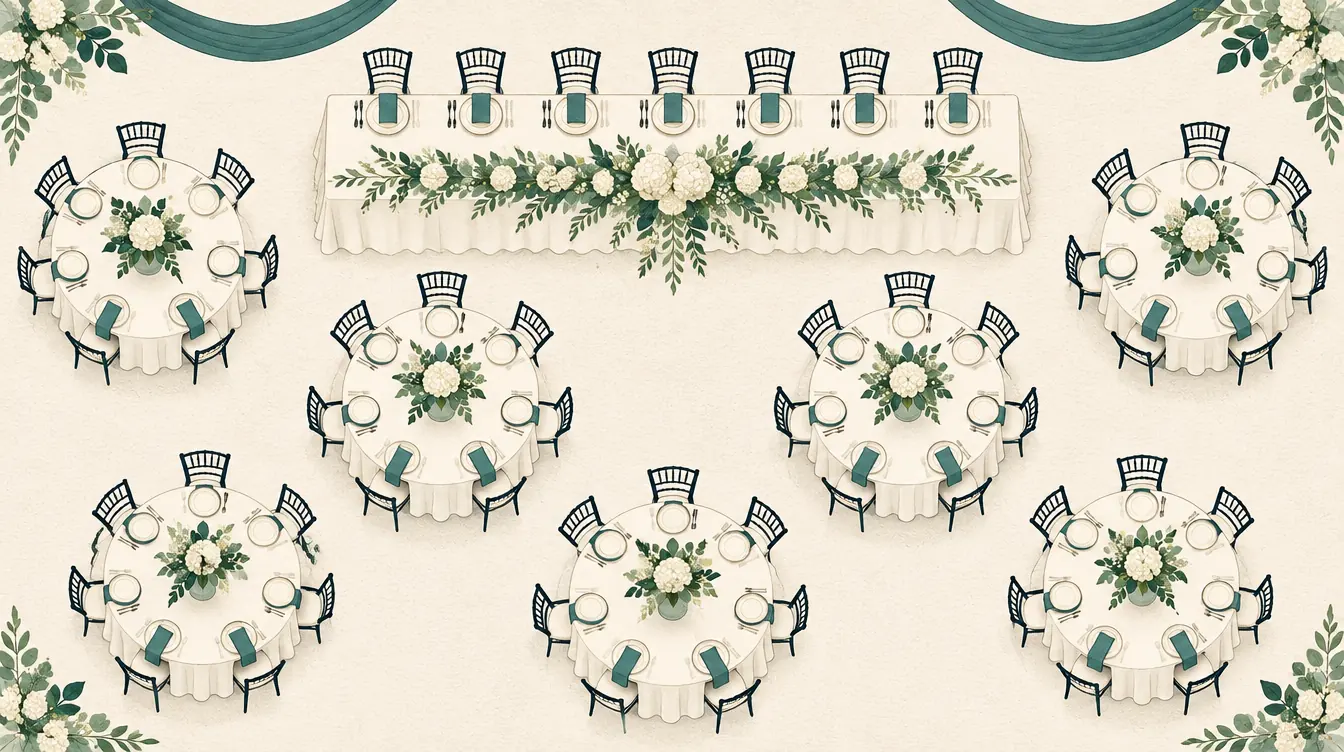
A fictitious wedding has eight round tables of eight. The planner adds:
- Haddad household — sit together, same table, must (6 people).
- Keep apart: Omar and Samir — same table, must.
- Sit together: Omar, Samir and Layla — same table, must.
The tool reports: “Sit together: Omar, Samir, Layla” and “Keep apart: Omar, Samir” ask for opposite things for Omar and Samir. The fix is to remove Samir from rule 3 — Layla sits with Omar, and Samir stays at a different table.
Next, Table 4 is changed to six seats, and two seats at Table 1 are reserved. Now the household can fit only at a few tables. The plan still works; if it hadn’t, the message would have said “needs 6 seats at one table, but the largest table has 5 free seats,” pointing straight at the table sizes.
Preventing conflicts
- Write rules for real constraints, not every preference.
- Prefer pairs to big groups in keep-apart rules.
- Choose the scope deliberately: adjacent seats for classrooms and bands, same table for weddings and events.
- Review rules when the layout changes. A rule that fit pods of six may not fit pairs.
- Name rules. “Twins in different groups” is easier to reason about than a list of names.
More on writing rules that help: How to Use Keep-Apart and Sit-Together Rules Well.
Put this guide into practice — it’s free and takes a few minutes.
Create a chartNew here? Read the complete guide to the free seating chart maker or the Classroom seating chart maker page .