How to Back Up Seating Charts and Move Them Between Devices
The free seating chart maker saves your work in your own browser, on your own device. That’s what keeps rosters and guest lists private — they never reach a server. It also means you are in charge of keeping copies. This guide explains how saving works, how backups work, and what to do when something goes wrong.
How saving works
Charts are saved automatically in your browser's built-in database (IndexedDB) on this device. "Saved on this device" appears only after the browser confirms the save. Charts aren't synced to other devices or browsers, and they aren't a cloud backup.
Things to know:
- Each browser is separate. A chart made in Chrome isn’t visible in Safari, Firefox or Edge, even on the same computer.
- Each device is separate. Your laptop and your phone have separate storage.
- Private windows forget. Most browsers delete a private window’s storage when it closes. If saving isn’t available, the tool says so and keeps the chart for that visit only.
- Clearing site data deletes charts. “Clear browsing data,” “Clear cookies and site data” or a cleanup app can remove them.
- Storage isn’t encrypted. Anyone using the same browser profile can open your charts.
On My charts, Ask the browser to keep this data requests persistent storage, which makes the browser less likely to clear it automatically when space runs low. Browsers decide whether to grant it.
What a backup contains
A backup is a .json file — plain, readable data. It contains, for each chart:
- the room: every table, desk, row and marker with its position,
- every seat with its number, label and status,
- the roster, including groups and short names,
- every assignment and lock,
- every rule,
- every saved version,
- the chart’s settings.
Opening a backup restores all of it exactly, with the same internal IDs — so versions and rules keep pointing at the right people and seats.
Step 1: Download a backup
Three ways:
- In the editor: Print & export › Download backup (JSON).
- On My charts: Backup next to any chart.
- On My charts: Download backup of all charts — one file holding everything.
The file name includes the chart’s title and today’s date.
Step 2: Move the file
Use whatever you trust: email it to yourself, copy it to a USB stick, or save it in your own file storage. Remember the file contains names, so treat it like the original roster or guest list.
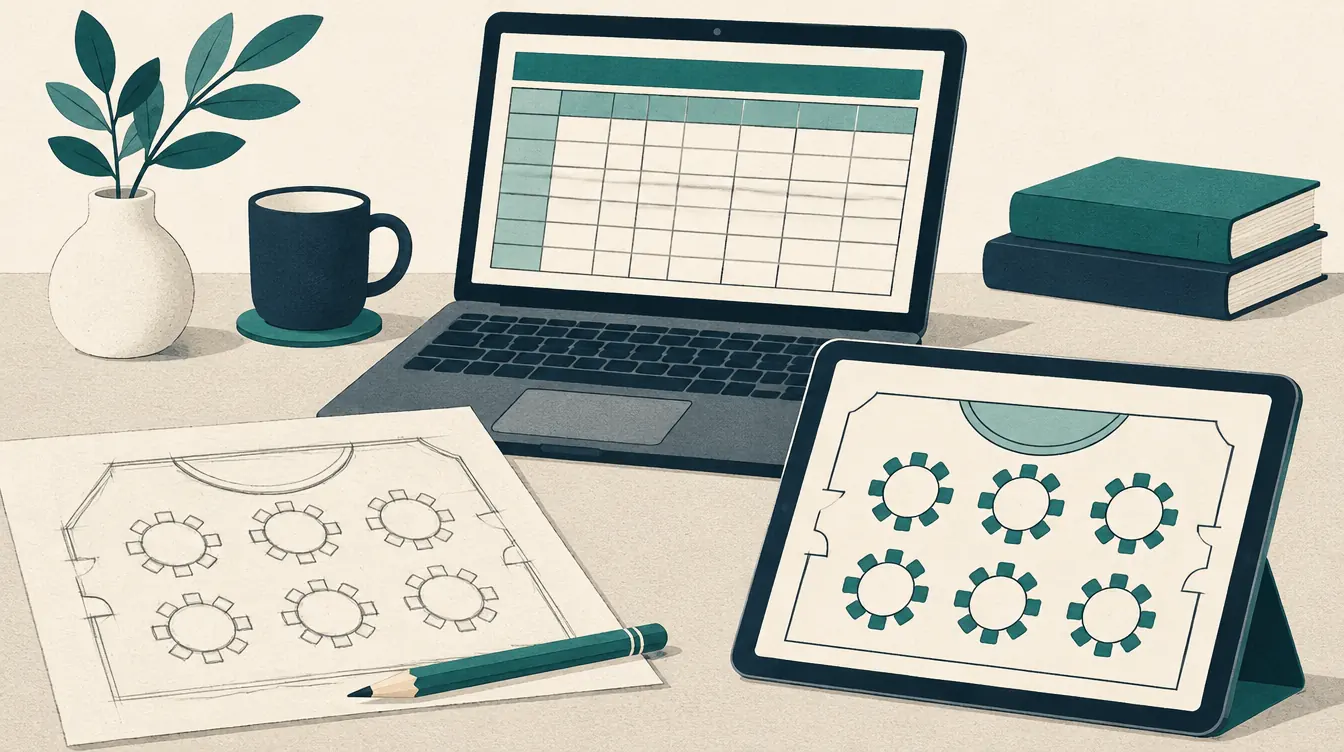
Step 3: Open it on the other device
On the other device, open My charts and choose Open a backup. The file is checked before anything is saved:
- It must be a backup from this app.
- It’s checked for size, structure and valid references.
- Backups from an older format are upgraded automatically; you’ll see a note saying so.
- A backup from a newer version is refused with a message — your file isn’t changed; reload the page to get the latest version.
You then see a list of the charts in the file, with their people and seat counts.
Step 4: Choose what happens
For each chart:
- Add to my charts — when the chart isn’t on this device yet.
- Open as a separate chart — the default when a chart with the same ID already exists. You get a second chart titled “(restored)”; nothing is overwritten.
- Replace the chart on this device — overwrites the existing chart with the backup. Chosen explicitly, with a warning.
- Skip.
Working with someone else
There are no share links and no accounts. To collaborate, pass the backup file back and forth:
- Agree who holds the “main” copy.
- Before sending, save a version (“Sent to Sam, 3 June”).
- When it comes back, open it as a separate chart and compare, or replace yours if you agreed the other person would make the changes.
When something goes wrong
| Problem | What to do |
|---|---|
| “Not saved” in the title bar | Download a backup immediately. Then free up space or check that site data isn’t blocked. |
| “Changed elsewhere” | The same chart is open in another tab. Choose Edit here instead, Save as a copy or Download backup. |
| “This chart is not on this device” | It was made in another browser or device. Download a backup there and open it here. |
| Storage full | Download a backup of all charts, delete old ones, and try again. |
| A backup won’t open | Check it’s the .json file from this app, not a CSV or a renamed file. |
Two tabs can’t overwrite each other’s work: the second tab opens read-only, and saves are checked against the latest revision, so a stale tab can’t replace newer work.
A simple backup habit
- After any important change: Backup from My charts.
- At the end of each term, season or event: Download backup of all charts.
- Before clearing your browser or changing devices: back up everything.
Related
Put this guide into practice — it’s free and takes a few minutes.
Create a chartNew here? Read the complete guide to the free seating chart maker .